 Gapex
Gapex Connect your Facebook Page to Gapex and manage comments with AI
Overview
Connect your Facebook Page to Gapex to manage comments on your posts with AI, reply to your audience, and improve engagement.
Requirements
Before connecting, make sure you have the following:
- A Facebook Page (Business or Community)
- You must be an Admin of that Page
Personal profiles cannot be connected. Only Facebook Pages are supported.
1. Create a Facebook Page
If you already have a Facebook Page, skip this section and go to 2. Connect to Gapex.
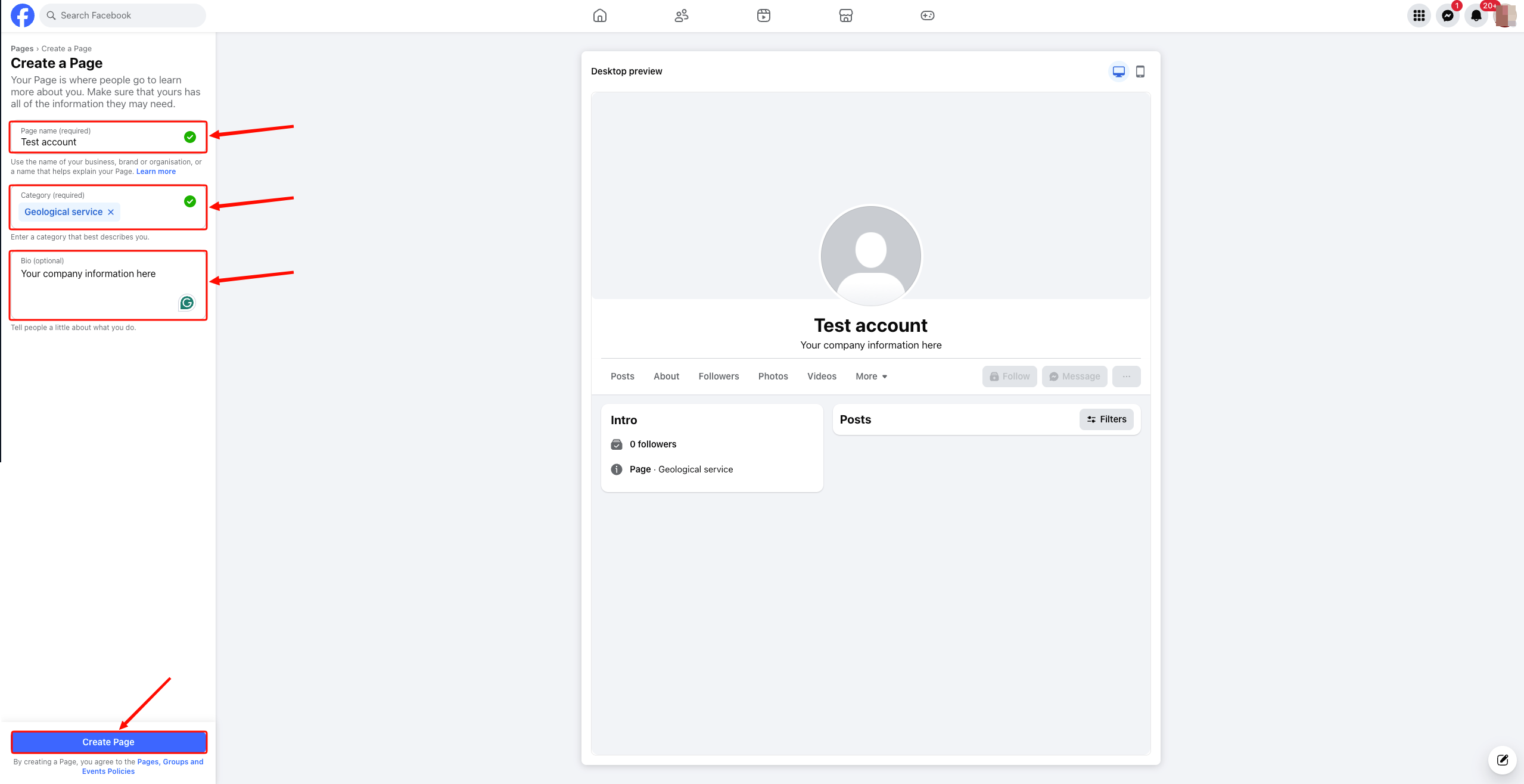
Step 1: Open the Page creation page
Go to facebook.com/pages/create in your browser. Enter the Page name, Category, and description. Then click Create Page.
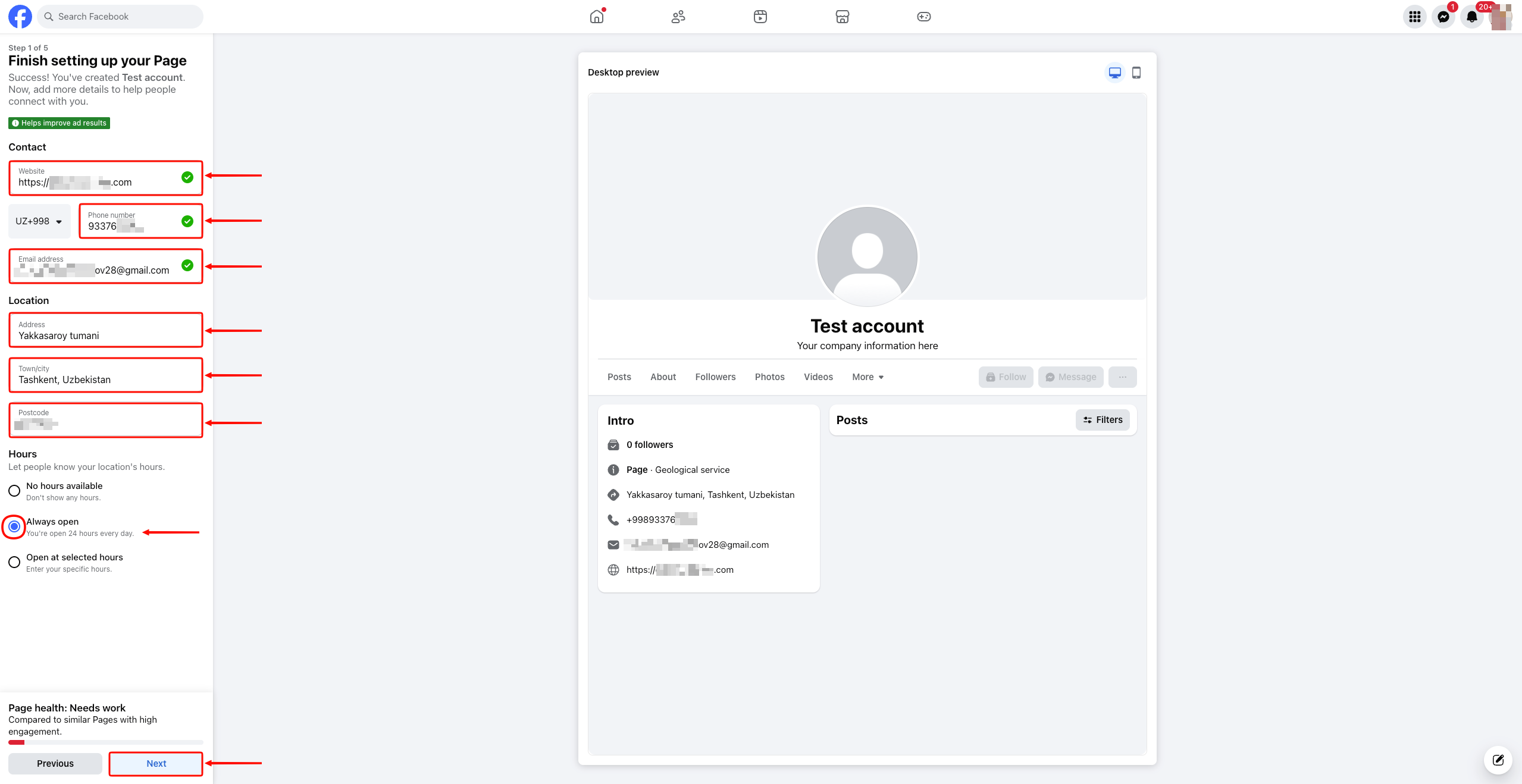
Step 2: Complete Page settings
Enter your contact information, address, and business hours. Click Next.
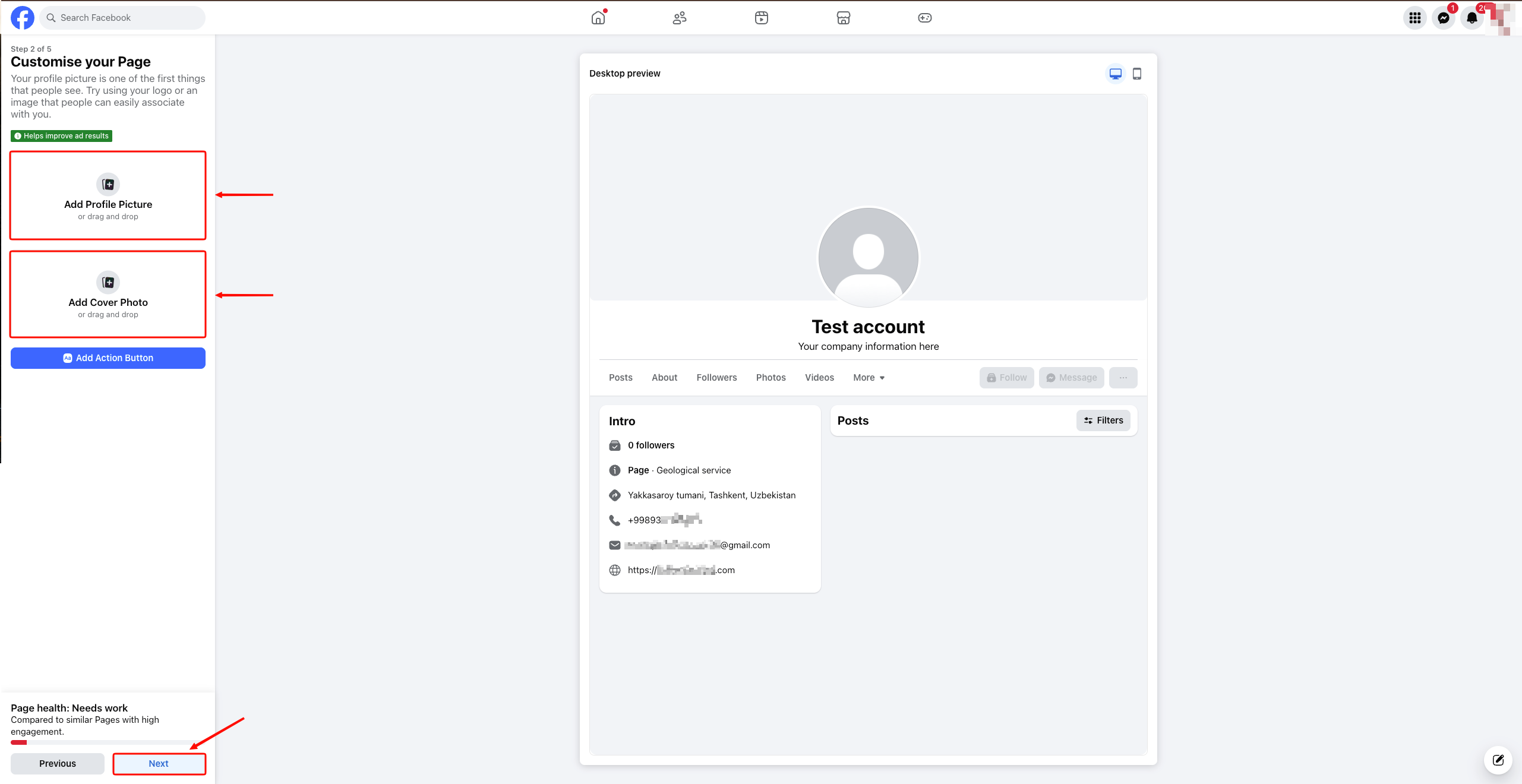
Step 3: Customize your Page
Add a profile picture and Cover Photo. Click Next.
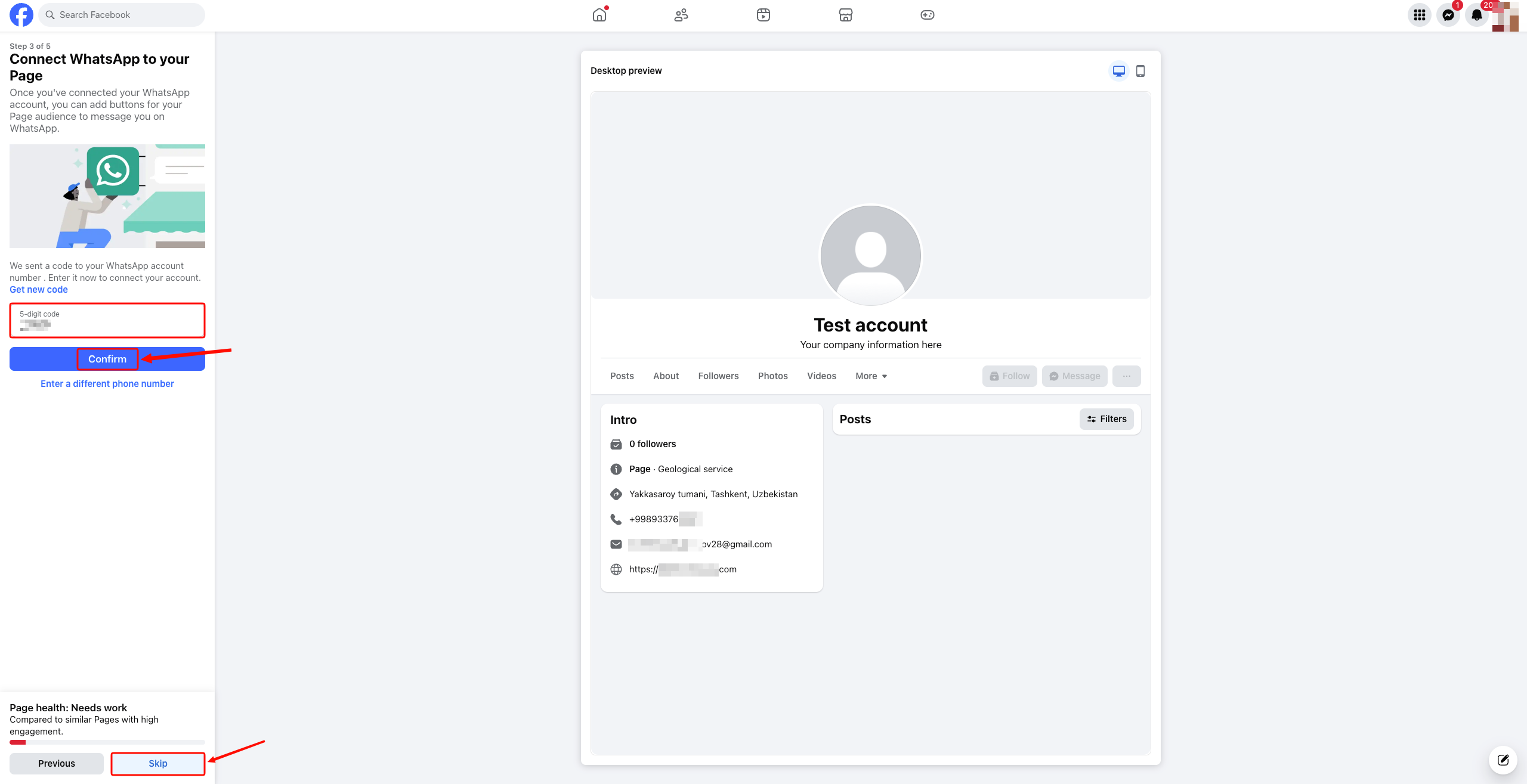
Step 4: Connect WhatsApp (optional)
You can connect your WhatsApp number or click Skip to skip this step.
Step 5: Invite friends (optional)
You can invite friends to your Page or click Next to skip.
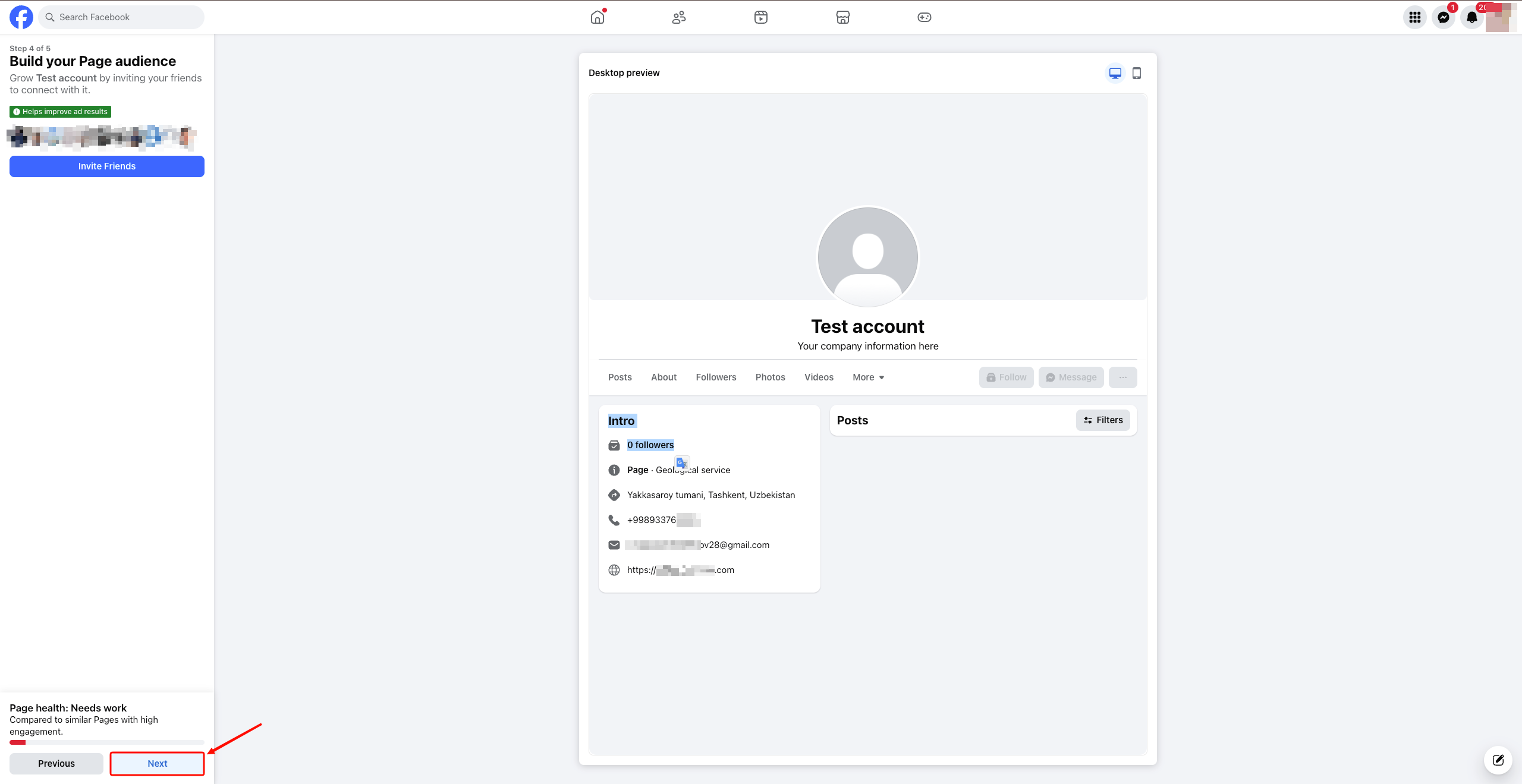
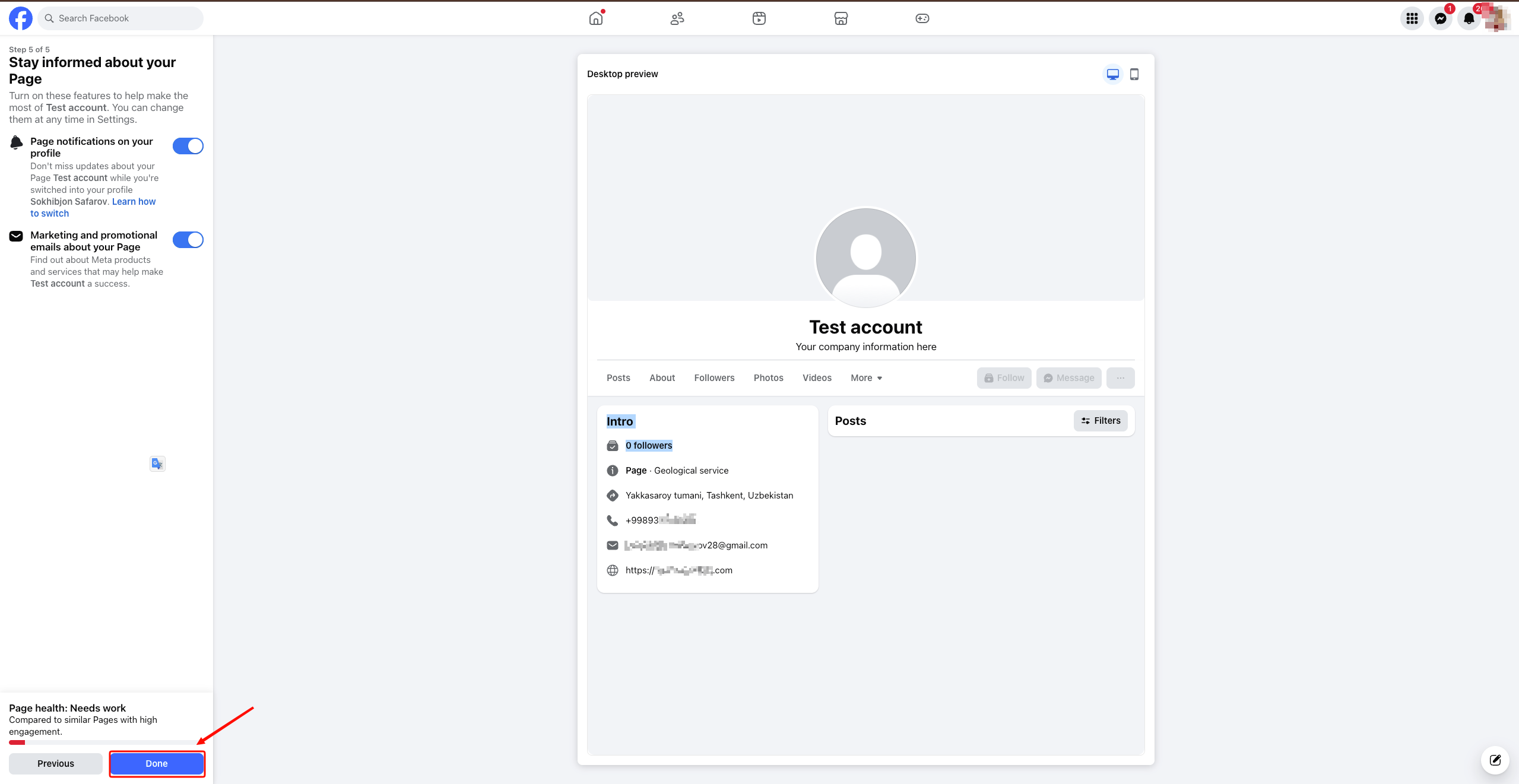
Step 6: Stay informed
Set your notification preferences and click Done to finish.
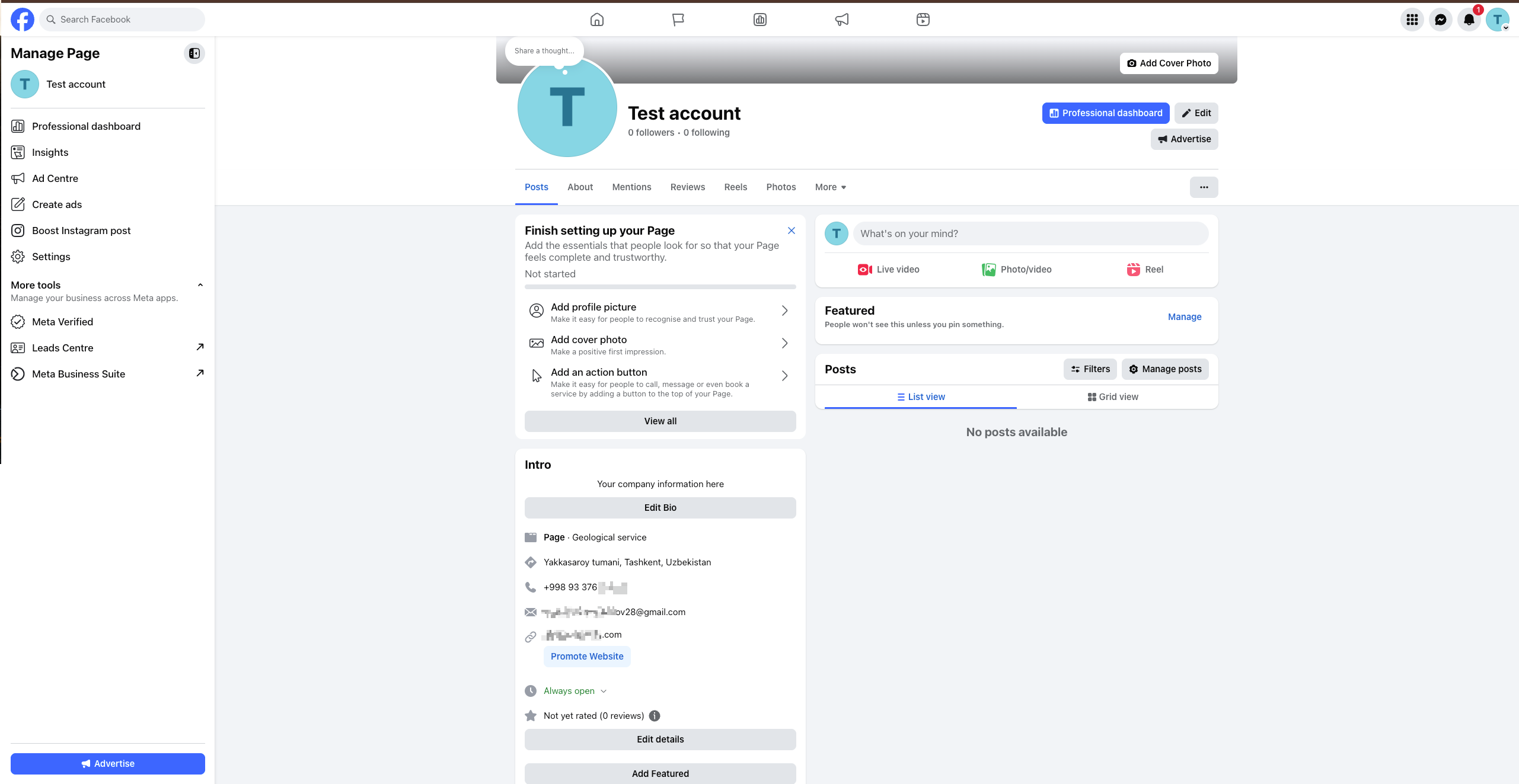
Step 7: Facebook Page is ready
Your new Facebook Business Page is ready!
2. Connect to Gapex
Step 8: Sign in to Gapex
Go to gapex.ai and sign in to your account.
Step 9: Add account
Go to the Accounts section in the left panel and click the + Add account button.
Step 10: Select Facebook
Select Facebook from the list of platforms and click Continue with Facebook.
Step 11: Authorize via Facebook
The Facebook login page will open:
- Log in to Facebook: Enter your email and password and sign in
- Confirm permissions: Gapex will request the following permissions:
- View Page posts
- Manage Page comments
- Read Page information
- Review the permissions and click Continue
Step 12: Select your Page
A list of Facebook Pages you manage will appear. Select the Page you want to connect and click Connect.
Step 13: Done!
Your Facebook Page has been successfully connected to Gapex. You can now view your posts and comments on the dashboard.
What happens next
After connecting, Gapex automatically starts the following processes:
- Post sync — Your Facebook Page posts appear in the Gapex dashboard.
- Comment monitoring — The system checks for new comments every 5 minutes.
- AI suggestion system — Gapex generates response suggestions based on post context.
Settings
Configure Page behavior in Account Settings:
Auto-response settings
- Enable auto-reply: Automatically post AI responses that match your confidence score.
- Review before posting: Hold responses for manual approval before they go live.
Comment filters
- Comment filter: Sync all comments or only unanswered ones.
Troubleshooting
“Facebook Page not showing”
Problem: No Pages appear in the selection screen. Solution: Make sure you are an Admin of the Page. Only users with Admin permissions can connect a Page.
“Comments not appearing”
Problem: No comments visible in the dashboard. Solution: Comments sync every 5 minutes. Wait a moment. If a post has no comments, it will appear empty.
“Invalid or Expired Token”
Problem: Your session has timed out or permissions were revoked. Solution: Click Disconnect in Account Settings and follow the connection process again.
Privacy & Security
- No passwords needed: We use official Facebook OAuth. We never see your password.
- Limited access: Gapex only accesses your Facebook Page data. We cannot access your personal profile.
- Revocable: You can remove Gapex’s access at any time via Facebook Settings → Business Integrations.
FAQ
Q: Can I connect multiple Facebook Pages? A: Yes! Simply repeat the “Add Account” process for each Page.
Q: Can I delete comments through Gapex? A: Yes, you can view, reply to, hide, and delete comments through Gapex.
Q: How do I disconnect a Page? A: Go to Settings and click the Disconnect button next to the account.
Limitations
- Admin required: Only Page Admins can connect an account.
- Sync interval: Comments sync every 5 minutes, not in real-time.
- Personal profiles: Personal Facebook profiles cannot be connected, only Pages.