 Gapex
Gapex App Store
Connect App Store Connect with Gapex and manage reviews with AI
Overview
Connect your App Store Connect account to Gapex — automatically sync your app reviews, respond to user feedback with AI assistance, and manage everything from a single dashboard.
Requirements
Before connecting, make sure you have the following:
- Apple Developer Program membership (paid, $99/year)
- Access to App Store Connect
- Your app must be published on the App Store
- Admin or Account Holder role
1. Sign in to Apple Developer
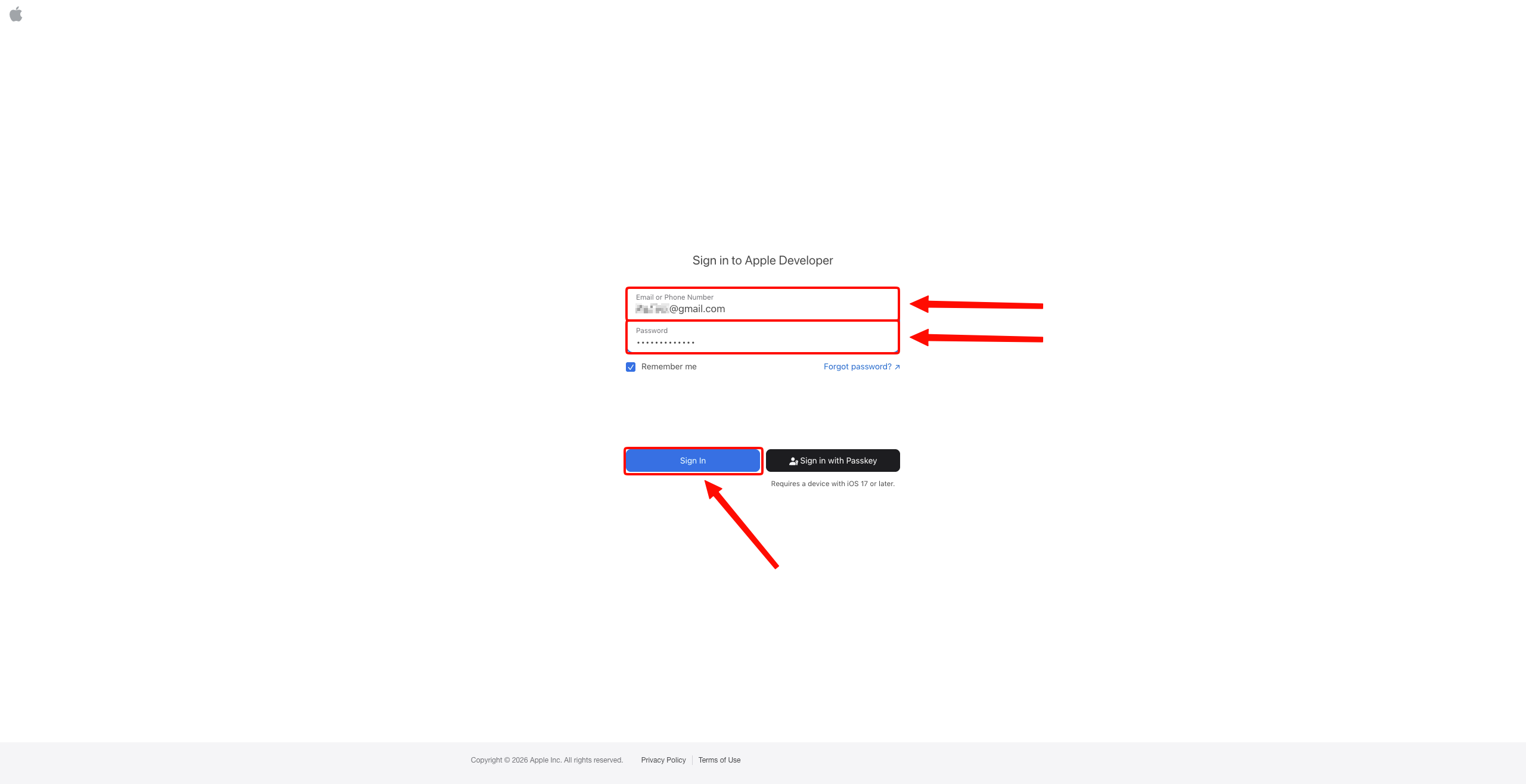
Step 1: Sign in
Go to appstoreconnect.apple.com in your browser. Enter your Apple ID credentials in the Email or Phone Number and Password fields, then click Sign In.
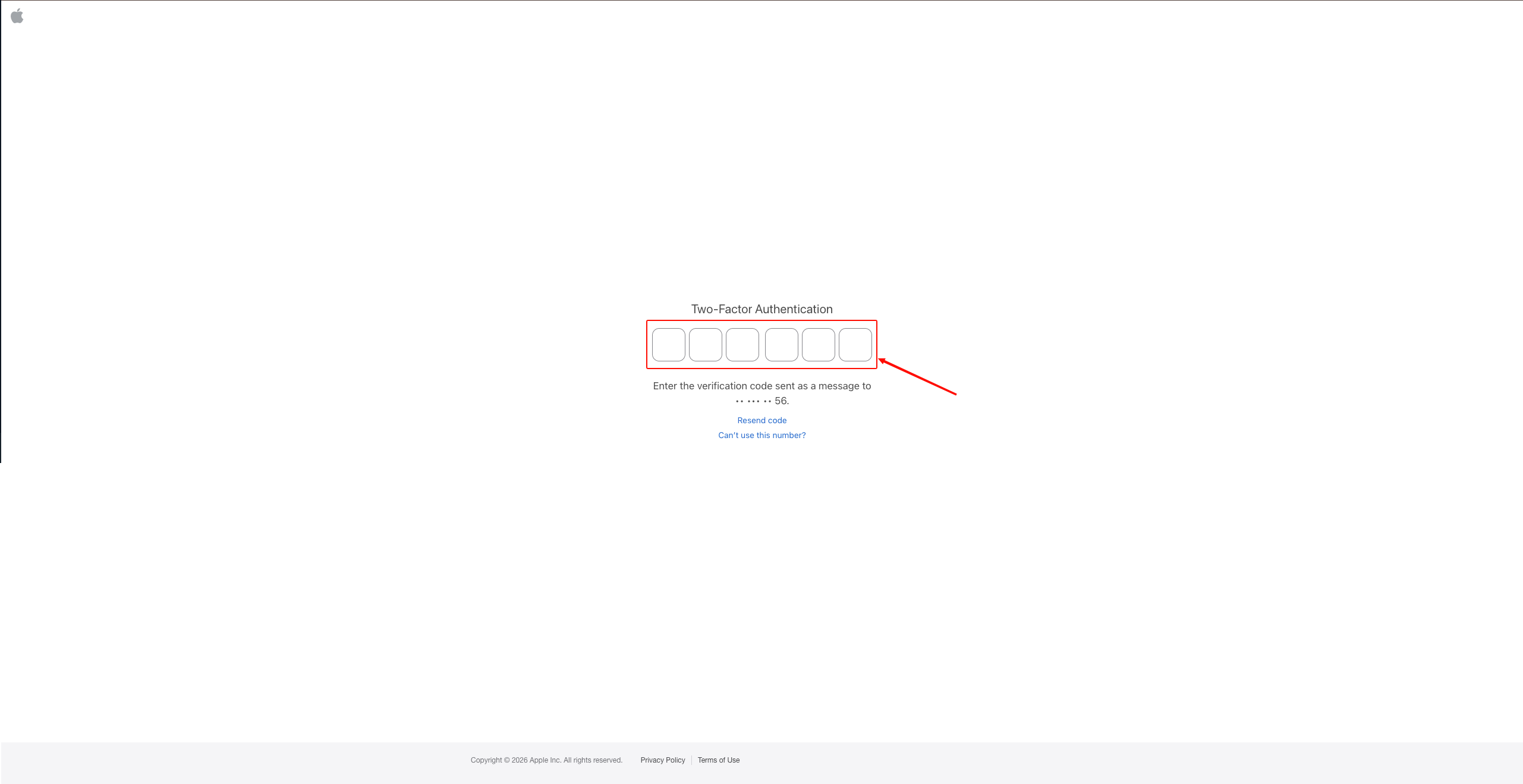
Step 2: Two-Factor Authentication
A 6-digit verification code will be sent to your Apple device. Enter the code.
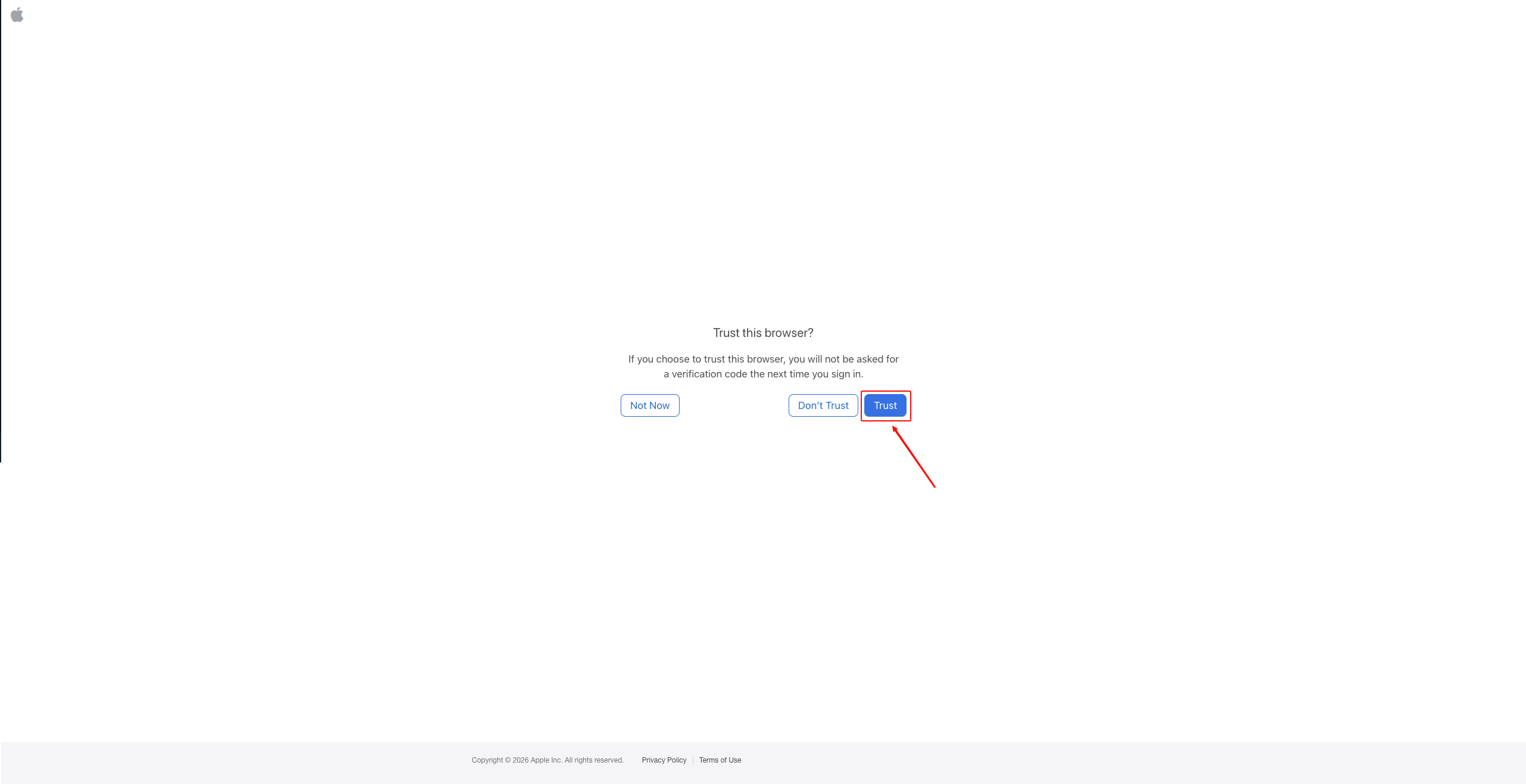
Step 3: Trust this browser
You’ll be asked “Trust this browser?”. Click Trust so you won’t be asked for a verification code next time.
2. Open Users and Access
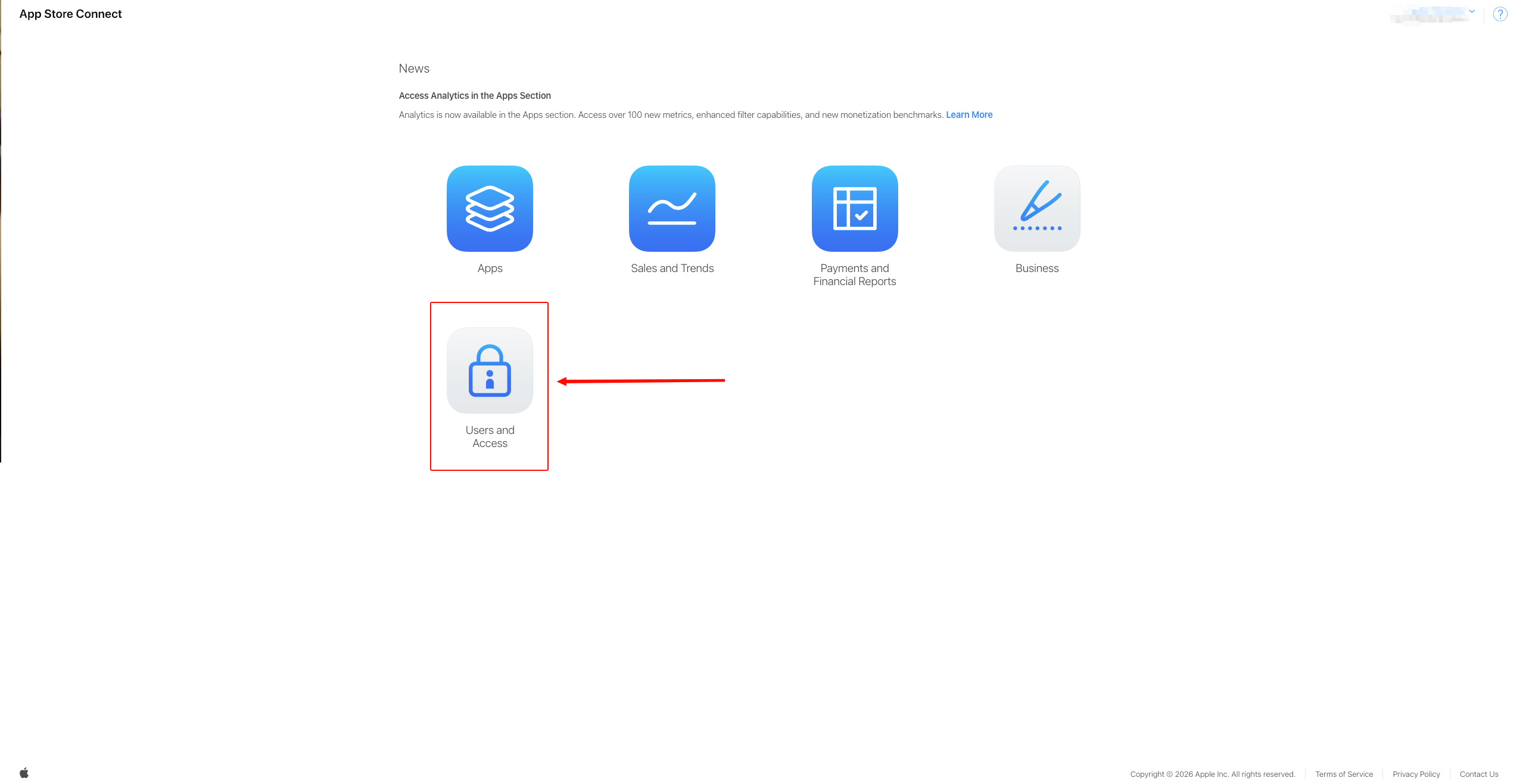
Step 4: Go to Users and Access
On the App Store Connect home page, click the Users and Access section.
3. Create an API Key and get the Issuer ID
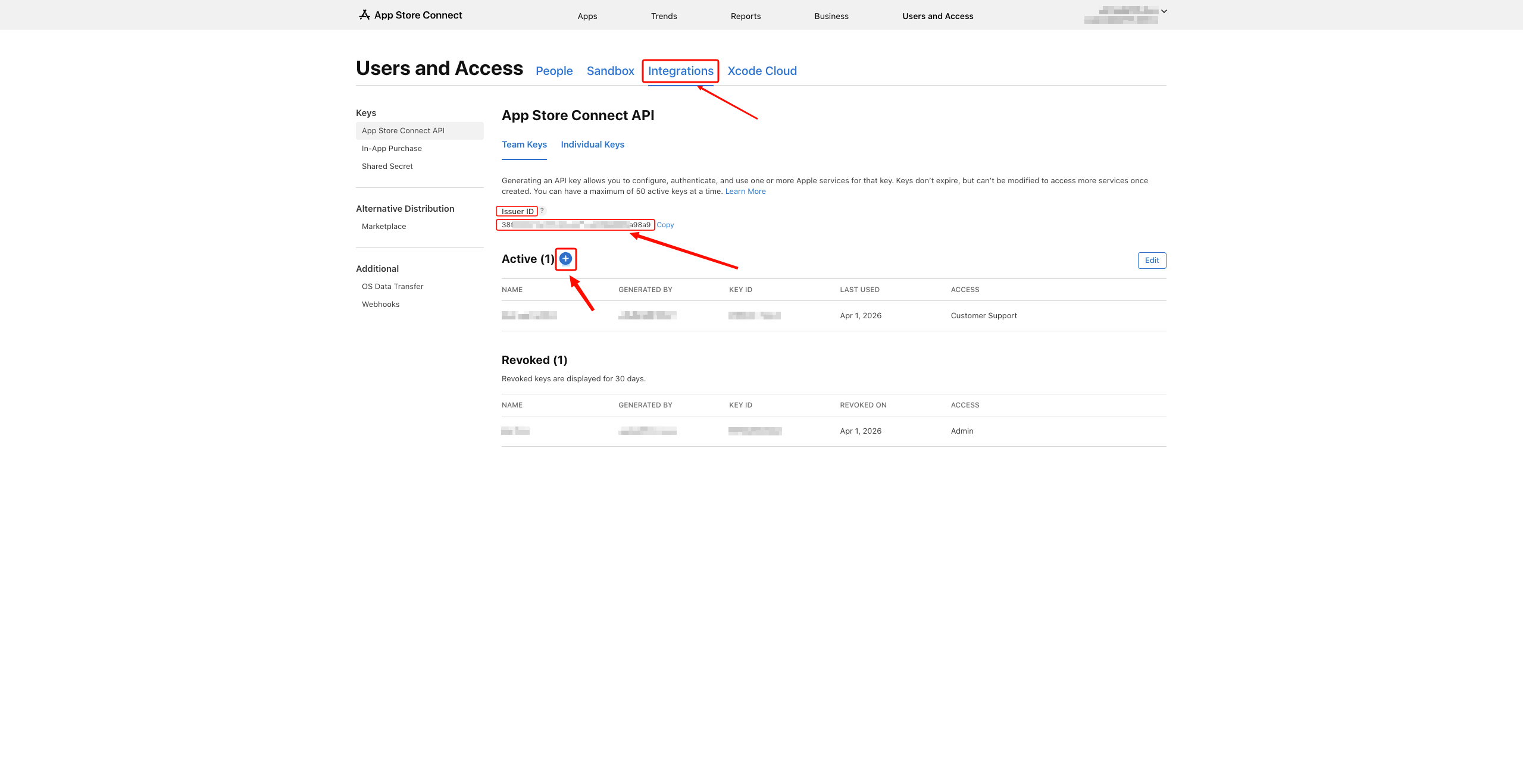
Step 5: Go to the Integrations tab and copy the Issuer ID
Click the Integrations tab in the top menu. Make sure App Store Connect API is selected in the left panel. The Issuer ID is displayed at the top of the page — copy it. This ID will be entered into Gapex.
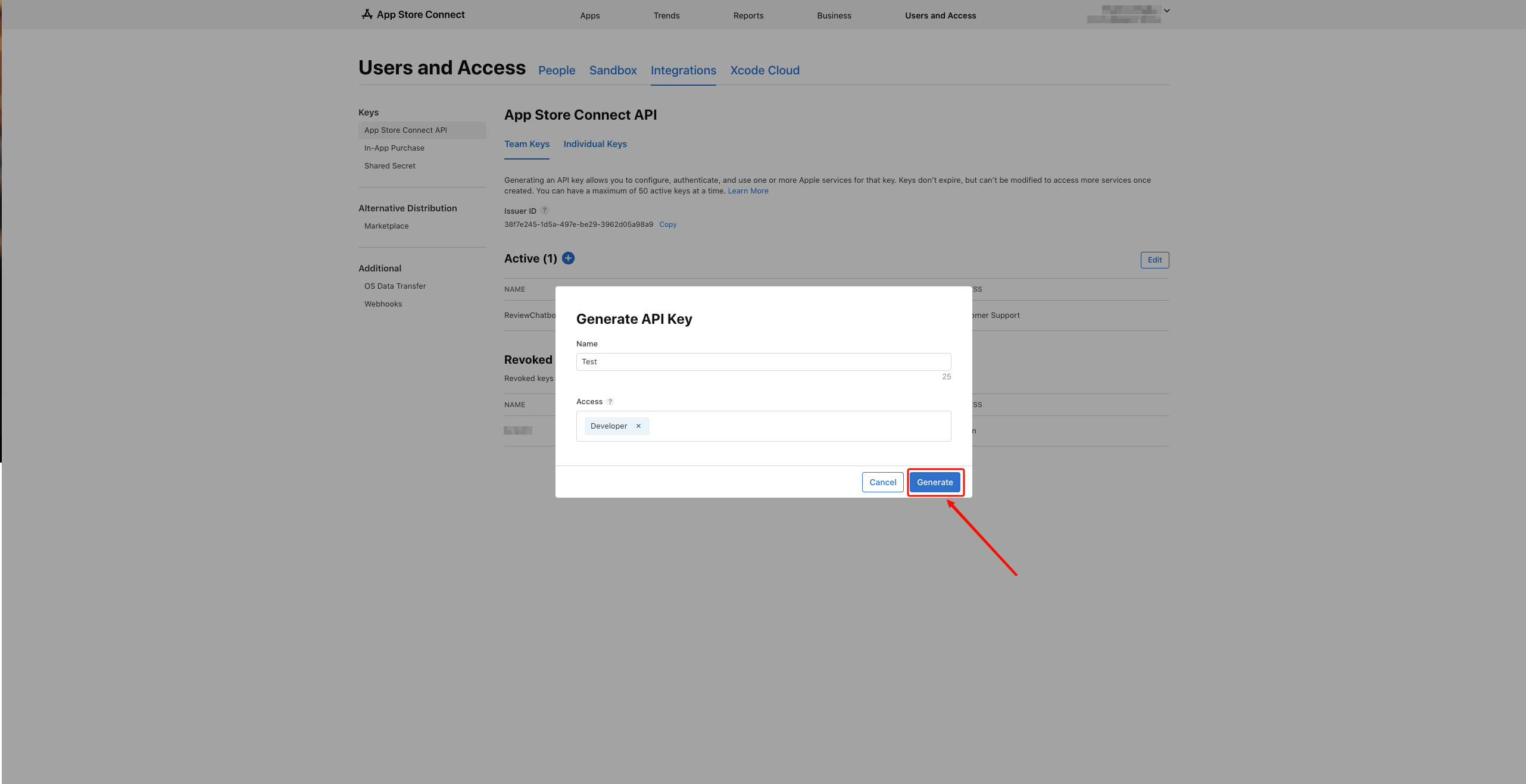
Step 6: Click Generate API Key
Click the "+" or Generate API Key button. In the dialog that appears:
- Enter a name for the key in the Name field (e.g.,
Gapex) - Select a role under Access (e.g., Developer)
- Click Generate
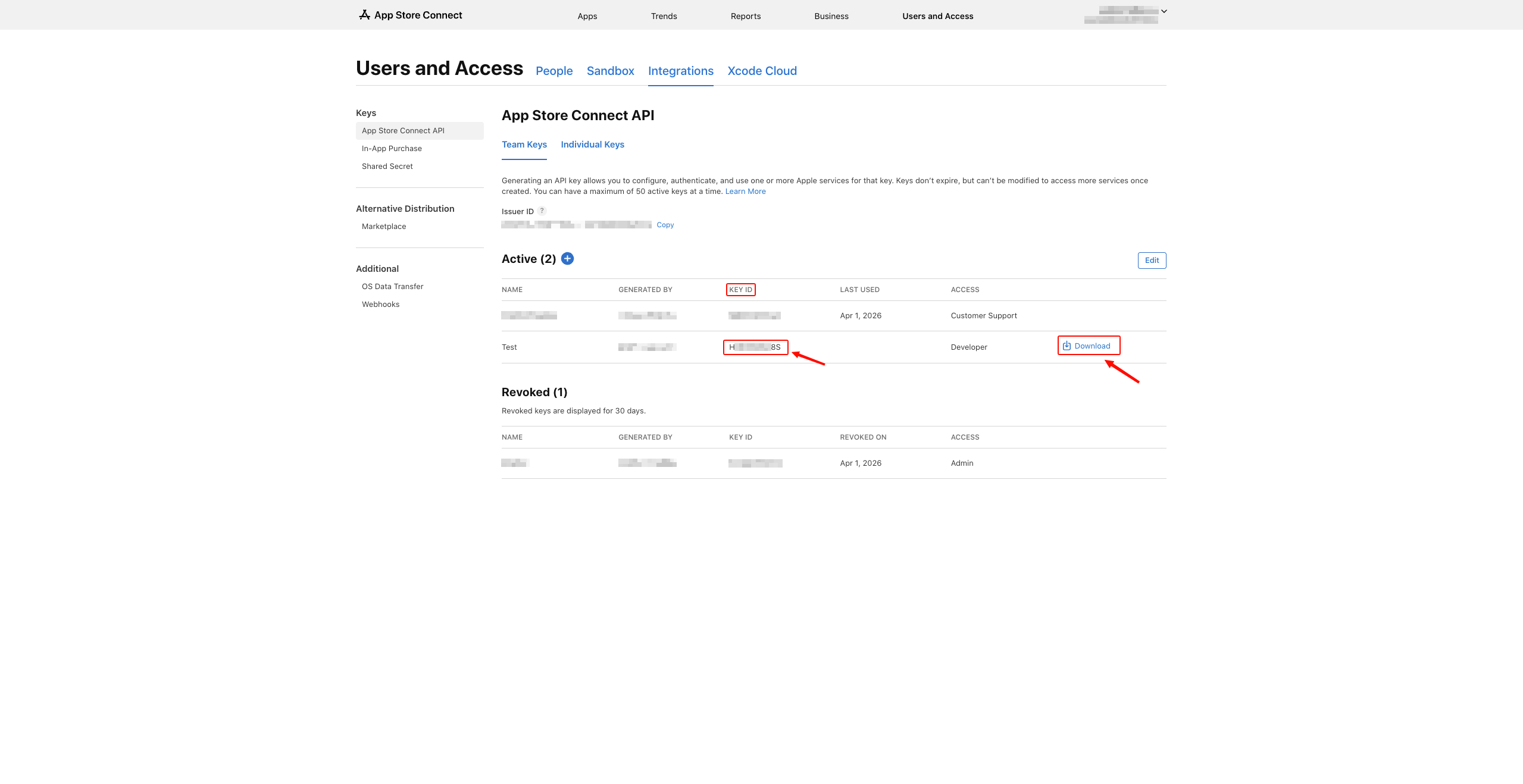
Step 7: Copy the Key ID and download the .p8 file
After the key is created, it will appear in the Active list:
- Copy the value from the Key ID column
- Click the Download button to download the
.p8file
Important: The
.p8file can only be downloaded once! Save it in a secure location.
4. Get the App ID
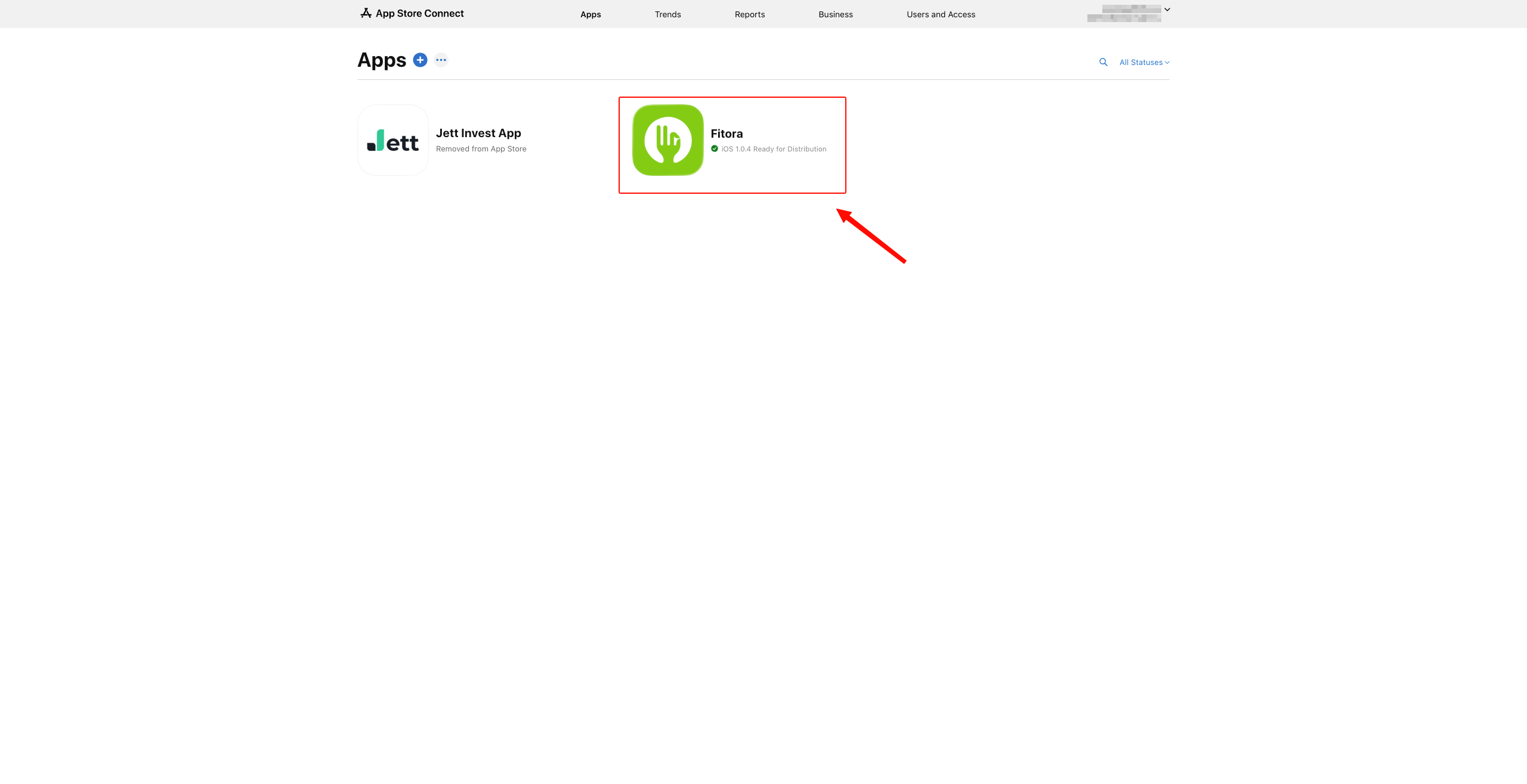
Step 8: Go to the Apps section
On the App Store Connect home page, click Apps in the top menu. Select the app you want to connect.
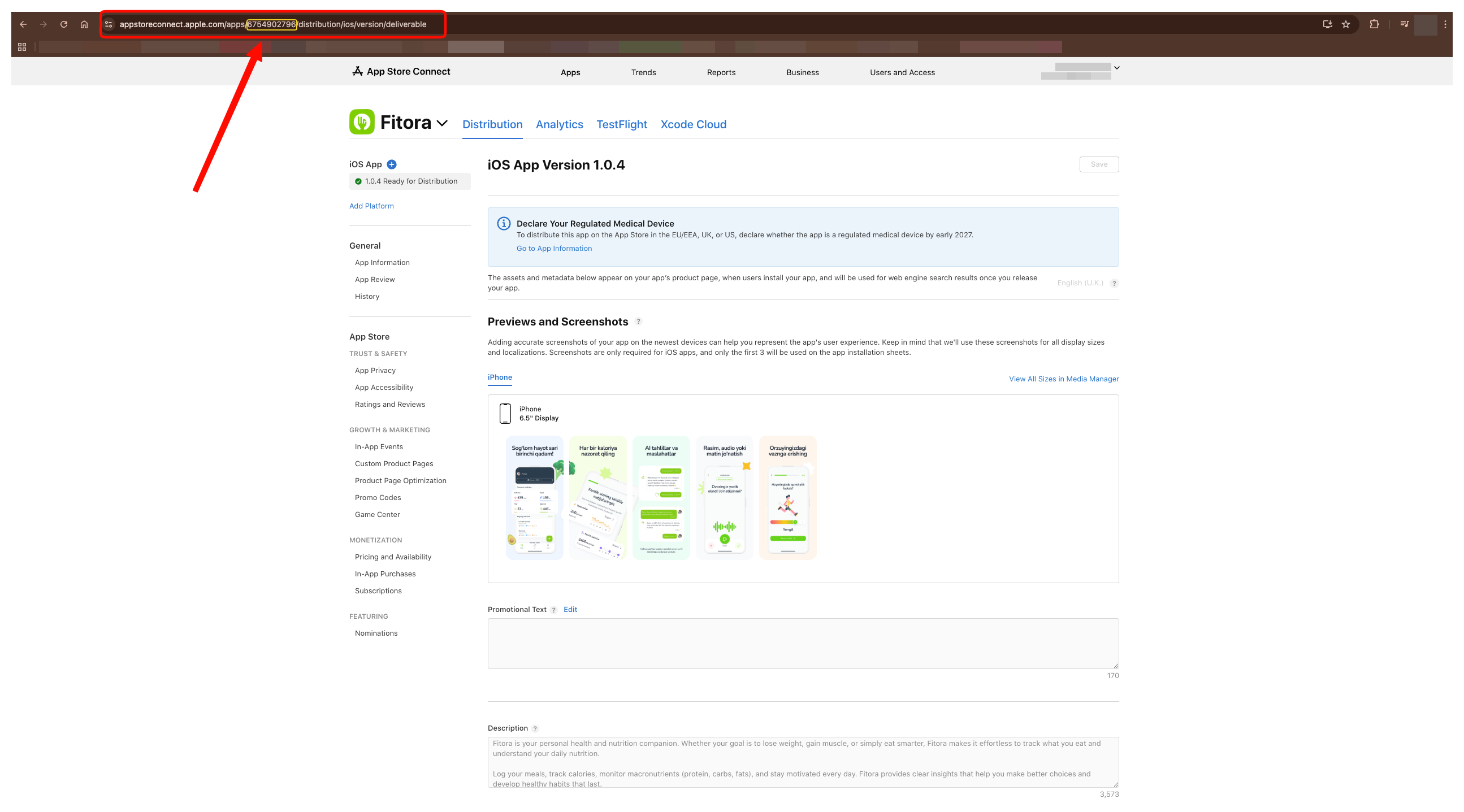
Step 9: Copy the App ID from the URL
After the app page opens, look at the browser address bar. The App ID number is shown in the URL (e.g., https://appstoreconnect.apple.com/apps/1234567890/...). Copy this number.
5. Connect to Gapex
Go to gapex.ai and sign in to your account. Go to the Accounts section in the left panel, click + Add account and select App Store. Enter the following information:
| Field | Description | Where to find |
|---|---|---|
| Issuer ID | The API key owner’s identifier | Step 5: Top of the Integrations page |
| Key ID | The API key’s ID number | Step 7: Key ID column in the Active list |
| Private Key (.p8) | The private key file | Step 7: Downloaded via the Download button |
| App ID | The app’s numeric identifier | Step 9: From the browser URL |
After entering the information, click Connect.
What happens next
After connecting, Gapex automatically starts the following processes:
- Review sync — App Store reviews appear in the Gapex dashboard.
- Review monitoring — The system regularly checks for new reviews.
- AI suggestion system — Gapex generates response suggestions based on review context.
Settings
Configure account behavior in Account Settings:
Auto-response settings
- Enable auto-response: Automatically post AI responses that match your confidence score.
- Review before posting: Hold responses for manual approval before they go live.
Review filters
- Review filter: Sync all reviews or only unanswered ones.
Troubleshooting
“API key not found”
Problem: Gapex is not accepting the API key.
Solution: Re-upload the .p8 file. Verify that the Issuer ID and Key ID are correctly copied.
“Permission denied (Forbidden)”
Problem: The API key does not have sufficient permissions. Solution: Verify that the API key role is correct. Change the role in App Store Connect → Users and Access → Integrations.
“Reviews not showing”
Problem: Reviews are not appearing in the dashboard. Solution: Verify that your app is published on the App Store. Only published app reviews are visible via the API.
“Lost the .p8 file”
Problem: The downloaded private key file is lost.
Solution: Revoke the old key and create a new API key, then download the .p8 file again.
Privacy and Security
- Secure connection: The API key is stored encrypted.
- Limited access: Gapex only accesses reviews for reading and responding. It cannot access your other app data.
- Revocable: You can revoke the API key from App Store Connect at any time.
FAQ
Q: Can I connect multiple apps? A: Yes! Enter a separate App ID for each app. The API key works for all apps.
Q: Is the API key free? A: Yes, creating an API key is free. However, Apple Developer Program membership ($99/year) is required.
Q: I lost my .p8 file, what do I do? A: Revoke the old key and create a new one. Each key can only be downloaded once.
Q: What role should I select? A: The Developer or App Manager role is sufficient for reading and responding to reviews.
Limitations
- API quota: Apple’s API has hourly request limits.
- Published apps only: Only reviews for apps published on the App Store are visible.
- Response length: The maximum length for App Store review responses is 5,970 characters.
- One-time download: The
.p8key file can only be downloaded once.